
Magic Poser - Art Pose Tool
Wombat Studio, Inc.Art & Design
2.85.22K Reviews
- Version
- 3.1
- Installs
- 5.00M
- Age Rating
- Teen
Screenshots
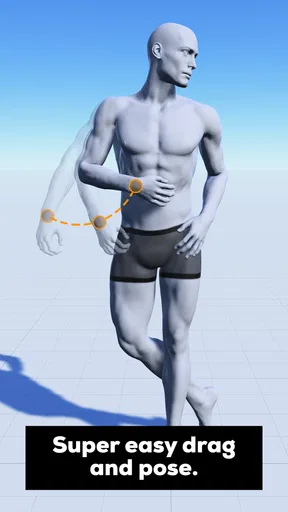
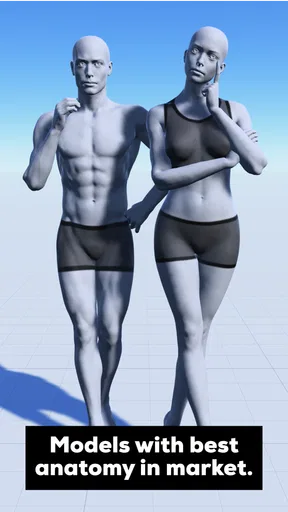
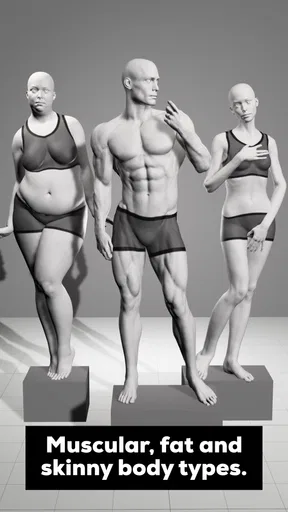

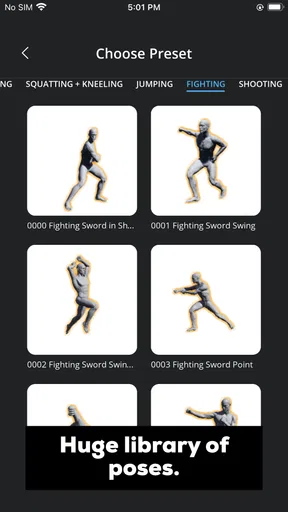
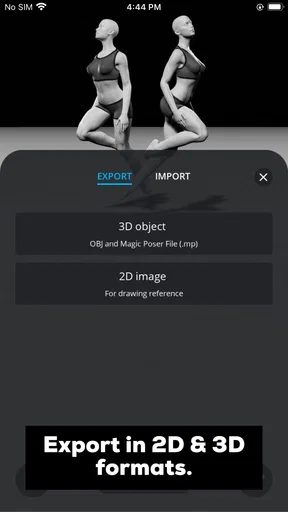
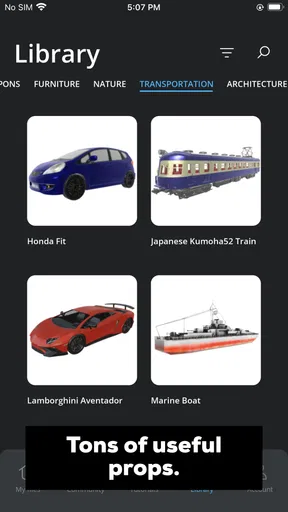
Our Review of Magic Poser - Art Pose Tool
 Analysis by Appyee
I often reach for a pose reference when a character’s weight, balance, or gesture feels wrong on the page. Magic Poser is most useful to me as a way to test a figure in three dimensions before I commit to drawing it. Rather than searching through photos for an angle that almost fits, I can shape a scene around the pose I need. That makes it a practical art and design app for sketch planning, though it works best as a reference aid, not as a replacement for learning anatomy or observing real people.
Why a poseable figure changes the reference process
The central idea is simple: set up a three-dimensional character, adjust its pose, and use the result to think through your drawing. The benefit is not that the app draws the finished character for you. It is that you can inspect the body from a chosen viewpoint and work out how the limbs relate when a flat sketch is giving you trouble. I find that especially helpful for unusual gestures, foreshortened arms, or a seated figure whose balance is hard to judge.
That flexibility comes with a useful caution. A model can show where the joints sit, but it cannot tell you whether a pose feels expressive or natural in the way a living subject might. I treat it as a construction reference: helpful for structure and perspective, but only one part of the drawing process. If your main goal is to capture subtle movement, facial character, or the irregularity of real bodies, photographs and life drawing remain valuable companions.
Building a reference instead of hunting for one
In a typical session, I would start with the basic gesture I want, rotate the view until the silhouette reads clearly, and then make small joint adjustments. The practical advantage is being able to keep the same pose while checking it from another angle. That can expose a hidden problem: a hand that seemed readable from the front may disappear behind the torso in a three-quarter view, or a bent leg may look disconnected once the camera shifts.
A good workflow is to solve the pose in broad strokes before fine-tuning individual joints. If I adjust every small angle too early, it is easy to lose the overall gesture. I first check the line of action, the direction of the shoulders and hips, and where the figure’s weight appears to rest. Only then do I refine the hands, feet, and head. This order makes a posed model more useful as a drawing reference and keeps setup from turning into aimless tweaking.
It also helps to choose a viewpoint for the drawing, not simply the most attractive view of the model. A dramatic angle may look appealing on screen but hide the limb you need to study. For a comic panel, for example, I would prioritize a readable silhouette and clear overlap between characters. For a portrait sketch, I would bring the camera closer and focus on the head and shoulders. The best view depends on the problem you are trying to solve.
How I would use it during an ordinary drawing session
Imagine I have a short break and want to sketch a character leaning against a wall, but the pose keeps looking as if the person might fall over. I can use a 3D figure to test the angle of the torso, bend the legs, and check whether the body’s weight seems to settle over the feet. Once the posture makes sense, I can move back to the sketch and exaggerate the gesture for style. That is a more focused use than trying to build a polished scene before I know what the drawing needs.
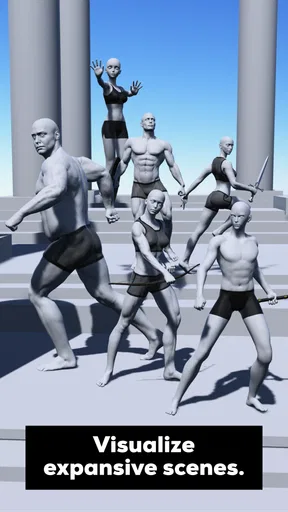
For a two-person composition, placing more than one figure in a scene can help me check spacing and interaction. I can see whether one character blocks the other’s face or whether a hand reaches convincingly toward a shoulder. I would still simplify the scene on paper rather than copying every model detail. The goal is to answer composition questions early, while changes are easy, instead of discovering them after inking or painting.
Lighting can be used in the same problem-solving spirit. Moving a light source gives me a rough sense of which planes turn toward the light and where shadows might fall. I would use that preview to plan the broad value pattern, not to treat it as a perfect rendering guide. A stylized drawing may need stronger or softer shadows than the model suggests, and the final result should serve the image rather than imitate a preview mechanically.
Where it fits among art-reference options
Compared with a pose book or a folder of photographs, a poseable 3D model is easier to reposition for a specific angle. Static references are often quicker to browse and can show fabric, muscles, and natural asymmetry with more realism, but they may not match the gesture I have in mind. A model offers control over composition; a photograph offers the visual complexity of an actual person. I get the most value by using both rather than expecting either one to cover every need.
Compared with sketching a mannequin from imagination, a 3D reference can help me catch perspective and joint placement before those mistakes spread through the drawing. The tradeoff is that setting up a pose takes attention, and a stiff-looking model can lead to a stiff-looking sketch if I copy it too literally. When I only need a quick warm-up or a familiar standing pose, drawing from memory may be faster. When the pose is awkward, the view is unfamiliar, or several figures need to fit together, building a scene becomes more worthwhile.
Getting more out of the controls and pose library
The controls give me two different ways to work: gestures for moving around the scene and individual joint adjustments when I need a more exact pose. I would use pinch-to-zoom and rotation to establish the overall view, then switch to the more deliberate joint controls for corrections. If the model begins to feel cramped on screen, zooming out before making another adjustment helps me keep the whole silhouette in sight. Fine control is useful, but it is easy to focus on one wrist or elbow and lose track of the body’s larger rhythm.
Pre-made poses are best treated as starting points, not finished answers. I would browse them when I have a blank-page problem, select a pose with a useful direction or balance, and then change the parts that do not suit the character. That is often faster than building every joint from scratch. It also encourages experimentation: a small change to the shoulders or stance can make a familiar pose feel more specific to the scene I am drawing.
For practice, I would pick one pose and make several quick sketches from different viewpoints rather than spending the whole session polishing the 3D setup. This turns the app into a prompt for studying volume and foreshortening. Another useful exercise is to draw the pose once as a simple stick figure, then compare the gesture with the model. If the drawing feels lifeless despite matching the joints, the missing ingredient may be exaggeration, not another round of technical adjustments.
Who benefits, and where the friction shows
Magic Poser is a strong fit for illustrators who regularly invent characters, comic artists blocking out scenes, and learners who want a clearer way to inspect how a pose is assembled. Beginners can use it to understand the relationship between body parts, while experienced artists may value the ability to test a difficult composition without asking someone to hold a pose. It can also help when drawing time is limited and the immediate question is practical: does this arm read, does the figure balance, and can the viewer understand the action?
I would be less enthusiastic about recommending it to someone who wants a complete drawing or painting app, or to an artist whose work depends on highly accurate anatomy and lifelike reference. A 3D mannequin is an aid, not a substitute for studying anatomy, gesture, clothing, and real-world proportions. Those who dislike adjusting models may also prefer photo references, which are ready to inspect without first setting up a scene. The right choice depends on whether control over pose and viewpoint matters more than natural detail.
The app is free to install, with in-app purchases ranging from about a dollar to around fifteen dollars per item. I would begin by testing the basic workflow against a real drawing task before spending anything. Its developer is Wombat Studio, Inc.; it is rated for teens and runs on operating systems starting with version 9. The current version is 3.1, and its average rating is 2.4 from around 62,000 ratings, with roughly 5,200 written reviews. It has passed five million installs, so there is a sizable audience, but that reach does not erase the mixed overall response. I would judge it by whether its controls and scene workflow suit the way I draw.
Getting Started with Magic Poser
First things first, let's talk about setting up. Downloading the app is a breeze, whether you’re on Android or iOS. Once installed, you’re greeted with a simple and intuitive interface. The app doesn’t bombard you with unnecessary frills that can make navigation a nightmare. Instead, it’s all about functionality and ease of use.
Upon opening Magic Poser, you can immediately start creating. The app offers a variety of models to choose from, including male, female, and even animals. Each model is fully customizable, allowing you to adjust everything from body proportions to facial expressions. This flexibility is a godsend for those detailed projects where every little nuance matters.
Features That Stand Out
One of the standout features has to be the ability to add multiple figures to a single scene. This is perfect for those complex compositions where characters interact with one another. You can adjust their poses, expressions, and even the lighting to create a realistic scene that serves as the perfect reference for your artwork.
Speaking of lighting, the app allows you to manipulate light sources within the scene. This feature is particularly useful for understanding how light and shadow play across different surfaces, a crucial aspect of realistic drawing. The shadows are dynamically updated as you adjust the light, giving you a true-to-life preview.
The User Experience
Using Magic Poser feels like having a mini studio in your pocket. The controls are intuitive, with pinch-to-zoom and swipe-to-rotate gestures that make positioning the model a breeze. For those who want even more precision, the app offers sliders to adjust each joint individually, ensuring you get the exact pose you need.
The app also includes a library of pre-made poses, which is a fantastic starting point if you’re feeling a bit stuck. You can tweak these poses to fit your needs or use them as inspiration for something new. It’s like having a well-organized reference book that’s always up-to-date and constantly expanding.
Why You’ll Love It
What really makes Magic Poser shine is its versatility. It’s not just for professionals; even beginners can dive in and start learning about anatomy and posing without feeling overwhelmed. The app strikes a perfect balance between being a powerful tool and a user-friendly experience.
Plus, the community aspect is a nice touch. Users can share their creations and download poses made by others, fostering a sense of collaboration and learning. It’s like being part of an ever-growing artist community where everyone is eager to help each other improve.
Final Thoughts
In a nutshell, Magic Poser is an indispensable tool for anyone interested in improving their art. It’s easy to see why it’s become a favorite among artists worldwide. The app’s flexibility and feature-rich environment make it an excellent choice for both quick sketches and detailed compositions.
So, if you’re looking to elevate your art game, give Magic Poser a try. It’s like having a personal model ready to pose for you anytime, anywhere. Trust me, once you start using it, you’ll wonder how you ever managed without it. Happy posing!
Verdict
Strengths of Magic Poser - Art Pose Tool
- Intuitive UI for easy navigation
- Highly customizable pose options
- Includes a wide range of models
- Realistic lighting and shadows
- Regular updates with new features
Limitations of Magic Poser - Art Pose Tool
- Occasional lag on older devices
- Limited free model options
- Ads can interrupt workflow
- In-app purchases can be pricey
- No offline mode available
Similar Picks in This Category
View All
Canva: AI Photo & Video Editor
Canva4.8

PENUP – Drawing-sharing SNS
Samsung Electronics Co., Ltd.4.5

Crafto
Kutumb App4.6

Sketchbook
Sketchbook4.1

ibis Paint X
ibis inc.4.5

Adobe Express: AI Photo, Video
Adobe4.6
Frequently Asked Questions
What is Magic Poser, and how does it benefit artists?
Magic Poser is a versatile art pose tool designed for artists who need a reliable reference for drawing characters in various poses. It offers a wide range of customizable 3D models, allowing artists to adjust anatomy and poses with ease. This app is ideal for improving drawing skills and visualizing complex scenes.
Does Magic Poser require an internet connection to function?
Magic Poser can be used offline, making it convenient for artists working without internet access. However, some features, such as downloading additional models or accessing the community library, may require an online connection. This allows artists to work flexibly in various environments.
Is Magic Poser suitable for beginners in art?
Yes, Magic Poser is highly suitable for beginners. The app provides an intuitive interface with easy-to-use tools, making it accessible for those new to drawing. Tutorials and a user-friendly design ensure that even novice artists can create and manipulate poses effectively.
What customization options does Magic Poser offer for models?
Magic Poser offers extensive customization options, including adjustable body proportions, poses, and angles. Users can manipulate lighting and camera settings to explore different perspectives. This flexibility helps artists create unique poses tailored to their specific artistic needs.
Are there any in-app purchases or subscriptions required?
Magic Poser offers a free version with essential features, but some advanced tools and models may require in-app purchases or a subscription. This model allows users to explore the app's basic features before deciding if they need advanced options, providing flexibility based on individual needs.
